Today
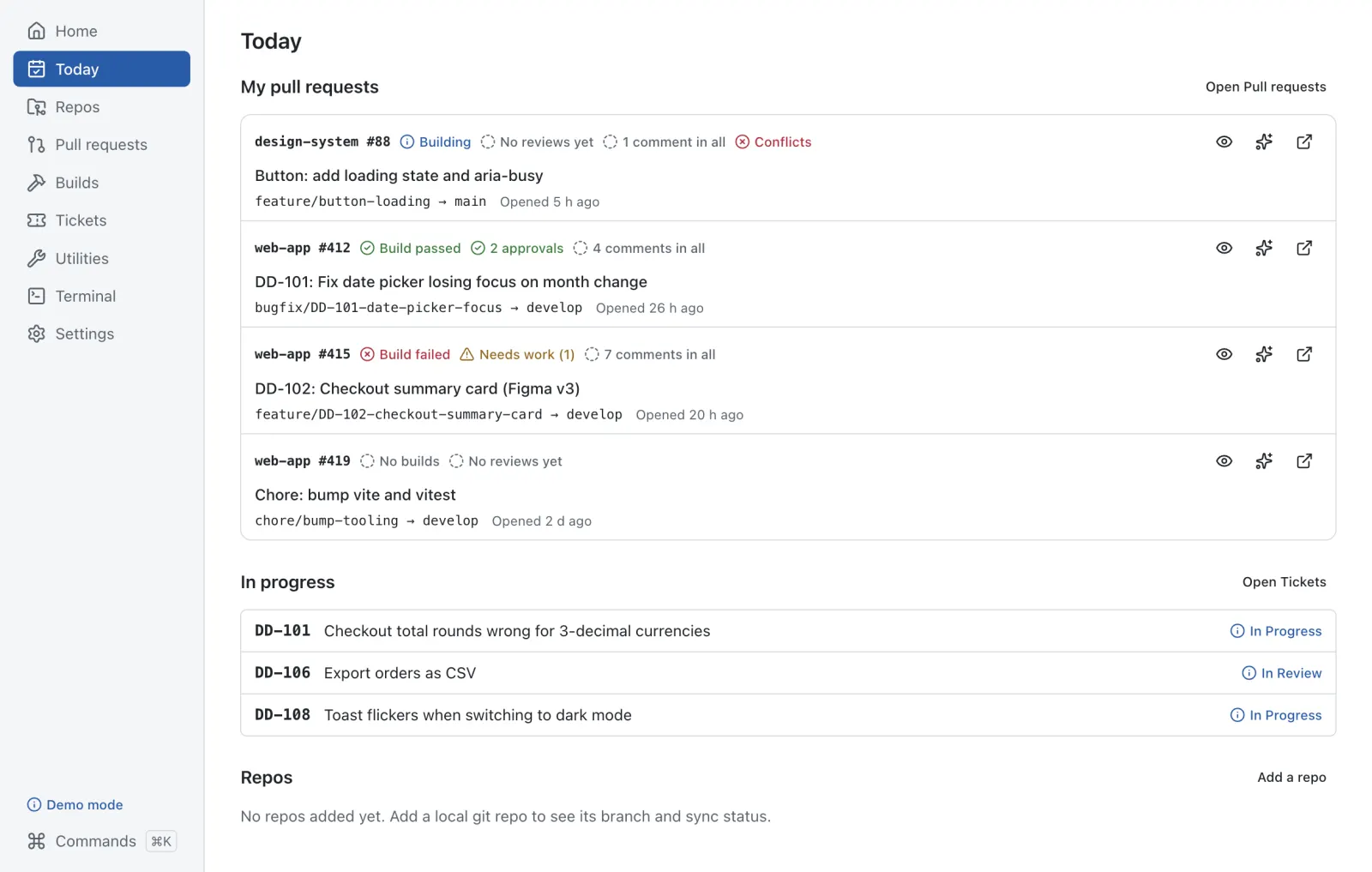
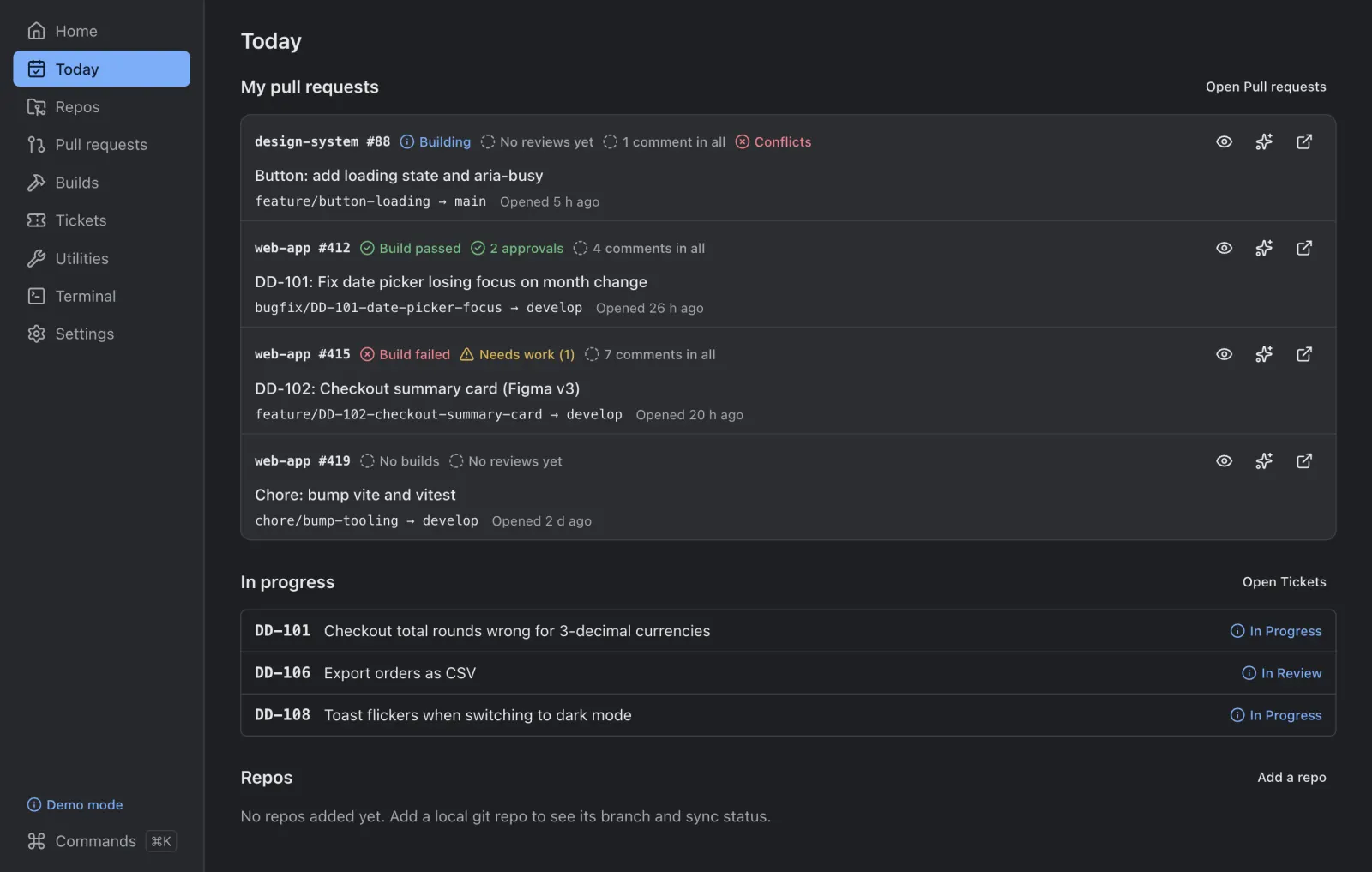
Your pull requests with build, review and comment state; the PRs and builds you watch; tickets in progress; and every repo’s branch and sync status, on one screen.
Repos, pull requests, builds, Jira tickets and a terminal in one desktop app for macOS and Windows. Sync your branch, check a build or start work on a ticket without opening five tabs.
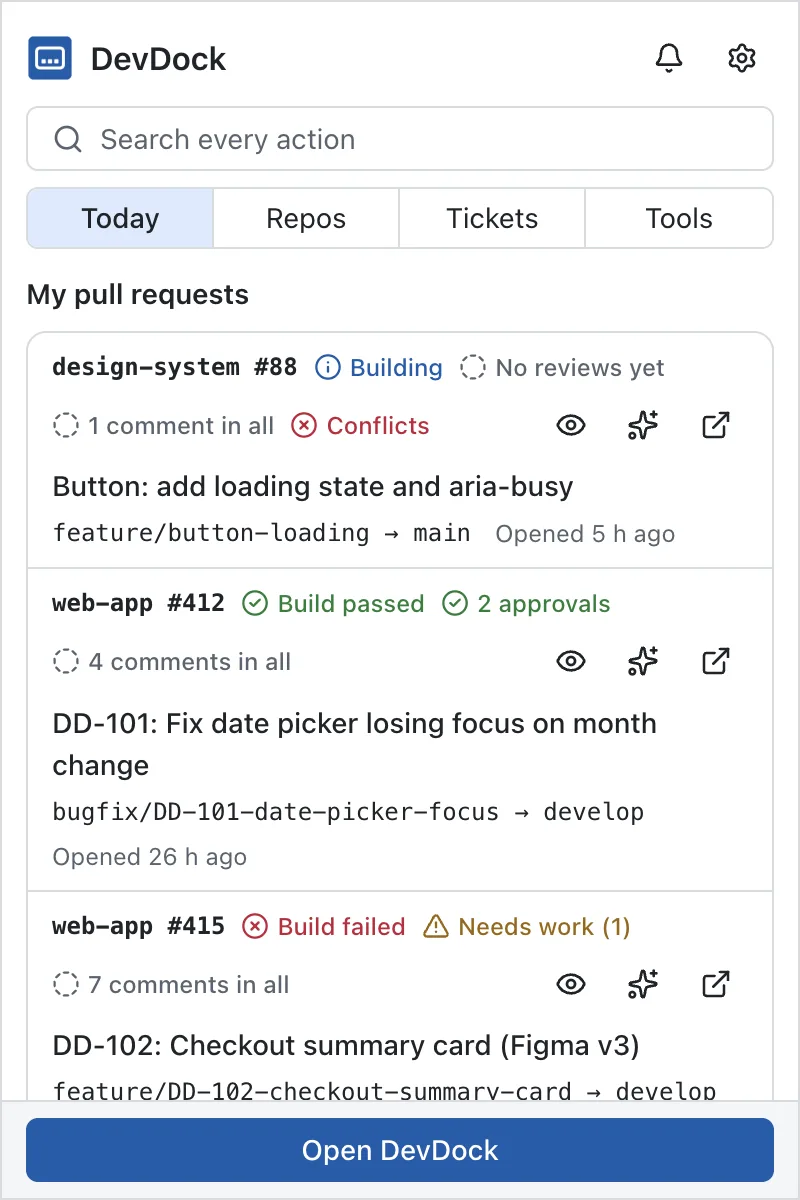
DevDock in demo mode — short clips of the real app. Open the app when you need the detail; the panel by the icon covers the rest.
Your pull requests with build, review and comment state; the PRs and builds you watch; tickets in progress; and every repo’s branch and sync status, on one screen.
Click the DevDock icon in the menu bar (or the Windows tray) for one-click actions: your PRs and watched builds, each repo with Sync base, Update my branch, Push and its dev server, tickets with Start work, and the standup. Open the app only when you need the detail.
Add your local git repos. Fetch, sync the base branch, update your branch (merge
or rebase, stashing if needed), make a branch and push. Every git command is shown
before it runs, protected branches are refused, and a conflict stops safely with
Abort. Push can run your check (like npm test) first and then watch
the Jenkins build; the dev server can start itself after a branch switch.
A real terminal inside DevDock, opened in the repo you’re looking at. It runs your own login shell and config, so an oh-my-zsh prompt and its plugins look just as they do elsewhere, with colours that follow the app’s theme. Keep a tab per repo, and open one from a repo’s row or the command palette.
From Bitbucket, GitHub and GitLab in one list: yours, the ones waiting for your review, recently merged, and any you watch by pasting a link. You get a notification when a build, review or comment changes. With your own AI key (Claude, GPT or Gemini), summarise a PR from its description and changed files — you see exactly what is sent before you press Send.
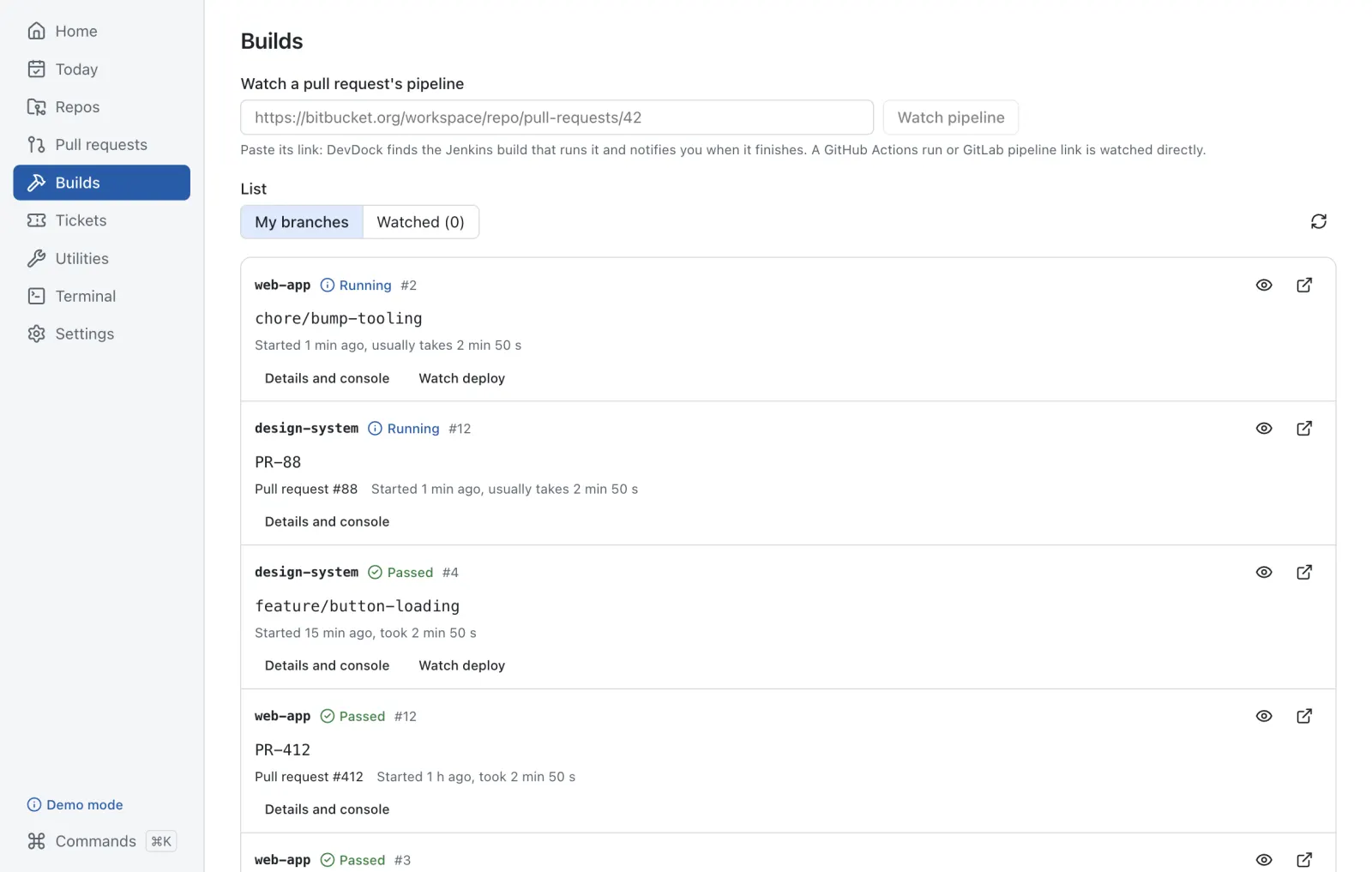
Jenkins builds, GitHub Actions runs and GitLab pipelines for your branches and pull requests, with stages, jobs and logs. Watch a build, a run or your branch’s deploy and hear when it finishes. Triggering, re-running and cancelling are off by default, always confirmed, and never offered for protected jobs.
Your Jira issues, the current sprint and saved queries. Start work makes the branch from a fresh base, writes a ticket brief into the repo and copies a ready message for your coding agent. Have Claude Code, Codex, Gemini CLI or GitHub Copilot CLI installed? Start work opens it in a DevDock terminal tab with that message.
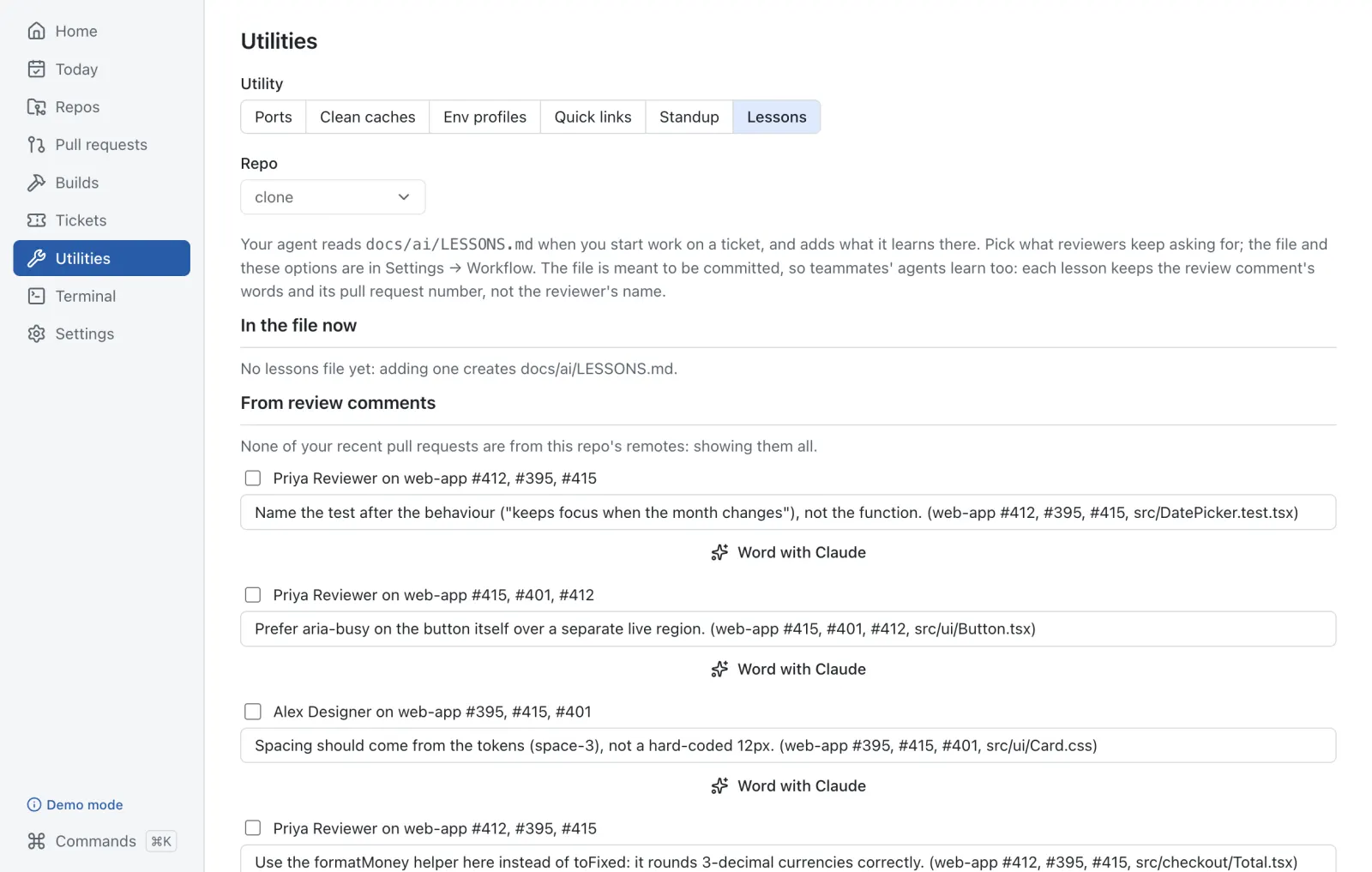
DevDock gathers what reviewers keep asking for on your pull requests. You pick and
edit the ones worth keeping and they’re added to
docs/ai/LESSONS.md in the repo, so your coding agent reads them
before it starts. DevDock makes no AI calls unless you add your own key.
Every action is searchable: ⌘K in the app, or ⌘⇧Space from
any app. Trigger a build, re-run a pipeline, move a ticket, watch a PR by pasting
its link, kill 5173, branch NM-1234. Actions that change
something still ask first.
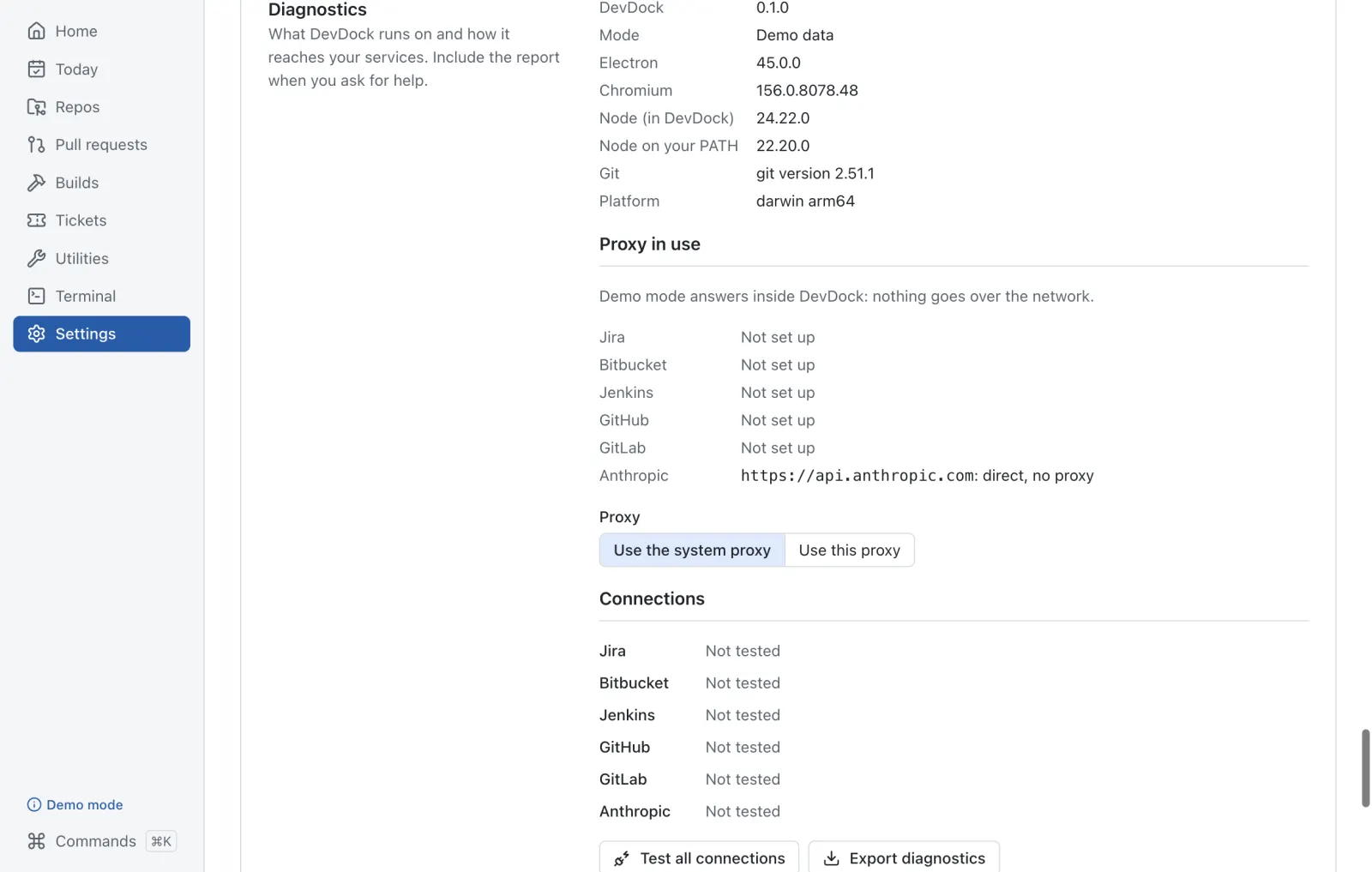
Five themes, font size and density; notifications with quiet hours; your services and credentials. Diagnostics shows versions and the proxy in use, tests every connection, and writes a report with names and tokens removed.
Install and open DevDock. Jira, Bitbucket, Jenkins, GitHub and GitLab answer from sample data inside the app, so nothing leaves your computer. Git on the repos you add and the Ports tool are always real, and ask before they act.
The menu-bar panel (the tray on Windows) shows your PRs, watched builds, tickets in progress and each repo with Sync base, Update my branch, Push and its dev server, one click each. Right-click the icon for the menu.
The command palette opens over whatever you’re in. Type
branch NM-1234 or kill 5173 and press Enter.
Pick a Jira issue and choose Start work: a branch from a fresh base, a brief in
docs/ai/specs/<KEY>/TICKET.md and a message ready to paste into
your coding agent.
Review comments on your PRs turn into lessons you choose and edit. Start work tells your agent to read them first.
When you’re ready, turn off demo mode in Settings and add the services you use — Jira, Bitbucket, Jenkins, GitHub or GitLab — with their addresses and tokens. Test connection tells you what’s missing.
Free for macOS and Windows. No account, no telemetry.
Get the installers for macOS and Windows, and every earlier version, on the Downloads page.
Needs macOS 12 Monterey or later (Apple silicon or Intel), or Windows 10 or 11 (64-bit). DevDock isn’t code-signed yet; the steps after downloading show how to open it the first time.
Security and privacy in plain words.
They’re encrypted by your operating system (macOS Keychain, Windows DPAPI) and read only by DevDock’s background process; the screens never see them. They’re never in settings files, exports, logs or diagnostics.
Pushing, merging, approving, triggering a build, moving an issue or stopping a process always shows exactly what will happen and waits for you. Protected branches and jobs are refused.
DevDock talks only to the services you set up, at the addresses you enter (plus a daily look at its own GitHub releases for updates, which you can turn off), and opens links only on hosts you allow. No telemetry, no account, and no AI service unless you add your own key (Anthropic, OpenAI or Google) — then each request is shown before it is sent. Demo mode makes no network calls at all.
It writes only where you ask: ticket briefs and lessons in your repo, env profile backups, its settings and logs. Env profile values are encrypted and masked until you reveal one. Clear all data removes everything DevDock stored.
This website has no cookies, no analytics and no third-party scripts; its fonts are served from this site.
| macOS | Windows | Does |
|---|---|---|
| ⌘K | Ctrl+K | Command palette in the app |
| ⌘⇧Space | Ctrl+Shift+Space | Command palette from any app (change it in Settings) |
| ⌘1 … ⌘8 | Ctrl+1 … Ctrl+8 | Home, Today, Repos, Pull requests, Builds, Tickets, Utilities, Settings |
| ⌘, | Ctrl+, | Settings |
| ↑ ↓ Enter | Move through and run palette results | |
| Esc | Close the palette, a dialog or the menu-bar panel | |
No. DevDock is free to download and use, and its source is on GitHub.
DevDock isn’t code-signed yet, so macOS (Gatekeeper) and Windows (SmartScreen) ask you to confirm the first time. On a Mac: System Settings → Privacy & Security → Open Anyway. On Windows: More info → Run anyway. You do this once.
No. Demo mode is on until you turn it off, and every screen works on sample data. Git on your own repos and the Ports tool work for real, with or without the services.
Choose Apple menu → About This Mac. “Chip: Apple M1” (or M2, M3, …) means Apple silicon; “Processor: Intel” means Intel. Most Macs sold since late 2020 have Apple silicon.
Managed computers often block unsigned apps outright. Ask your IT team to approve DevDock and send them the GitHub repository: the source is public, they can build it themselves, it needs no admin rights, and it only talks to the addresses you enter.
No. There’s no telemetry and no DevDock server. It talks only to the services you set up (Jira, Bitbucket, Jenkins, GitHub, GitLab), at the addresses you enter, using tokens stored in your system’s keychain — plus a daily look at its own GitHub releases for updates. The AI features send text only to the provider whose key you added (Anthropic, OpenAI or Google), only after you see it and press Send; a PR summary includes file names and line counts, never your code.
Not yet. DevDock is built and tested on macOS and Windows.
DevDock checks once a day whether a newer version is out and tells you; Settings → General has Download (it opens the release page) and a switch to turn the check off. Install the new version over the old one; your settings stay. It never installs anything by itself. To uninstall, drag DevDock from Applications to the Bin on a Mac, or use Settings → Apps on Windows. To remove its data first, use Settings → Data → Clear all data in DevDock.
Install it, open the demo and click around. Connect your services when you’re ready.
Get DevDock